

How to Enable Developer Options on a DHB Taxi Seat Back Display
Introduction
The DHB Taxi Seat Back Display is based on the Android operating system and supports professional configuration, debugging, and software development.
For security reasons, Android developer options are hidden by default. Authorized technicians can enable developer mode through the factory settings menu when system configuration or debugging is required.
This guide explains how to enable developer options on a DHB Taxi Seat Back Display.
Why Are Developer Options Hidden by Default?
Developer options provide access to advanced Android functions, such as USB debugging, system settings, and developer tools.
To protect system security and ensure stable operation of the taxi advertising system, DHB hides developer options by default.
This helps prevent unauthorized users from:
- Changing system settings
- Installing unauthorized applications
- Affecting CMS operation
- Interrupting normal advertising playback
Only authorized technicians should enable developer options when necessary.
How to Enable Developer Options on DHB Taxi Seat Back Display
Follow the steps below to enable developer mode.
Step 1: Enter the APP Menu
From the main interface of the DHB Taxi Seat Back Display, click:
APPS
to enter the application list.
Step 2: Open System Settings
In the APP list, find the:
Settings
icon.
Click it to enter the Android system settings menu.
Step 3: Enter Factory Settings
In the settings menu, select:
Factory Settings
The system will request a password.
Step 4: Enter Factory Password
Enter the factory password:
66610001
Then click:
OK
After successful verification, a message will appear at the bottom of the screen:
Developer Mode Enabled
This means developer mode has been successfully activated.
Step 5: Enter Android Settings
After enabling developer mode, click:
Android Settings
to enter the standard Android system settings page.
Step 6: Find Developer Options
In Android settings:
- Select:
System
- Click:
Advanced
- The:
Developer Options
menu will now appear.
You can enter developer options according to your technical requirements.
Important Notes
1. Developer Options Are Only for Authorized Users
Developer options provide access to advanced Android system functions.
Incorrect configuration may affect:
- System stability
- CMS application operation
- Device performance
- Normal advertising playback
Please only enable or modify developer options when required for technical support, debugging, or software development.
2. Maintain System Security
The hidden developer mode design protects the Taxi Seat Back Display from unauthorized operations.
For commercial taxi applications, maintaining a controlled Android environment helps ensure:
- Stable advertising playback
- Secure CMS operation
- Reliable device performance
3. Use Developer Options Carefully
After completing debugging or development work, it is recommended to avoid changing unnecessary system settings.
Keeping the system configuration unchanged helps maintain long-term stability of the taxi advertising display.
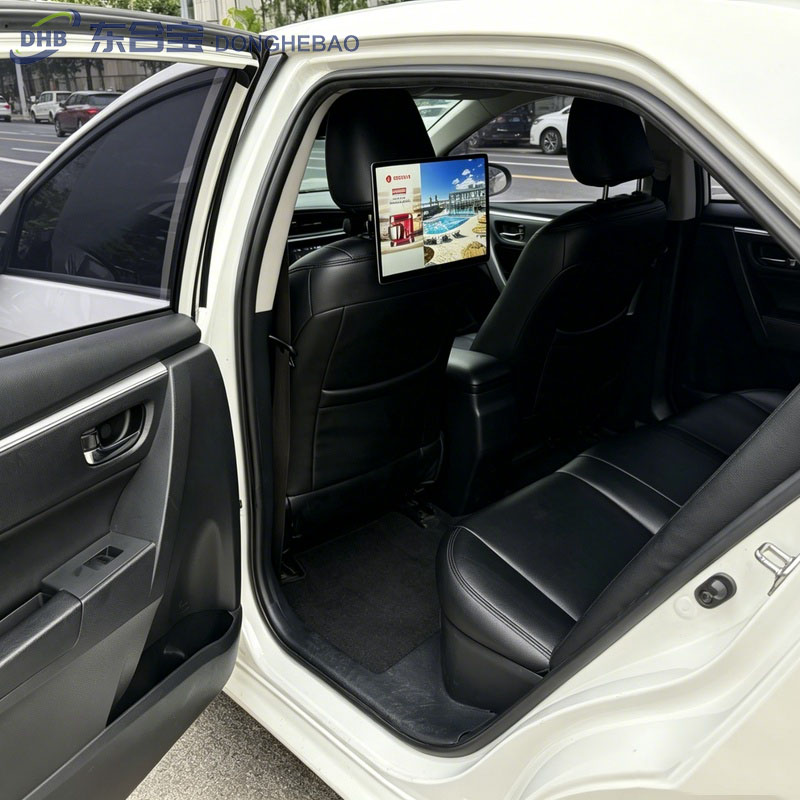
Developer Options Access Process
The complete operation path is:
APPS → Settings → Factory Settings → Password (66610001) → Android Settings → System → Advanced → Developer Options
Conclusion
The DHB Taxi Seat Back Display uses a hidden developer mode design to improve system security and prevent unauthorized access to Android advanced settings.
For authorized engineers and technicians, developer options can be enabled through the factory settings menu using the password 66610001.
This method provides convenient access for professional debugging while maintaining a secure and stable operating environment for taxi advertising applications.
FAQ
1. Why are developer options hidden on DHB Taxi Seat Back Display?
Developer options are hidden by default to improve system security.
This prevents passengers or unauthorized users from changing Android settings, installing applications, or affecting the operation of the taxi advertising system.
2. What is the password to enable developer mode?
The factory password for enabling developer mode is:
66610001
This password is intended for authorized technicians only.
3. How do I find developer options on a DHB Taxi Seat Back Display?
Follow this path:
APPS → Settings → Factory Settings → Password (66610001) → Android Settings → System → Advanced → Developer Options
4. Why does DHB hide Android developer options?
The Taxi Seat Back Display is installed in public transportation environments.
Hiding developer options helps prevent:
- Unauthorized software installation
- System configuration changes
- CMS application interruption
- Passenger misuse
5. Can passengers access developer options?
Normally, no.
Developer options are hidden by default and require factory access permission to enable them.
6. Will enabling developer options affect advertising playback?
Enabling developer options itself will not affect advertising playback.
However, changing advanced Android settings incorrectly may affect system performance or CMS operation.
7. Who should enable developer options?
Developer options should only be enabled by:
- DHB engineers
- Authorized distributors
- Technical maintenance personnel
- Software developers
8. Does DHB provide customization and technical support?
Yes.
DHB provides:
- Taxi Seat Back Display customization
- Android system configuration
- CMS integration support
- Firmware customization
- OEM & ODM services
CTA
Need Technical Support for DHB Taxi Seat Back Display?
DHB specializes in professional Taxi Seat Back Display, Taxi Rear Seat Display, and Taxi Advertising Display solutions for global taxi operators, advertising companies, and fleet management projects.
Our technical team can support:
- Developer mode configuration
- Android system settings
- Firmware upgrades
- CMS integration
- Hardware customization
- OEM & ODM projects
WhatsApp: +8613422871594
Email: kiki@donghebao.com
Contact Us: About Us | Leading Taxi Advertising Company – DHB Taxi Ad
www.dhbtaxiad.com www.donghebao.com
Work with DHB for reliable Android taxi display solutions designed for commercial transportation applications.