

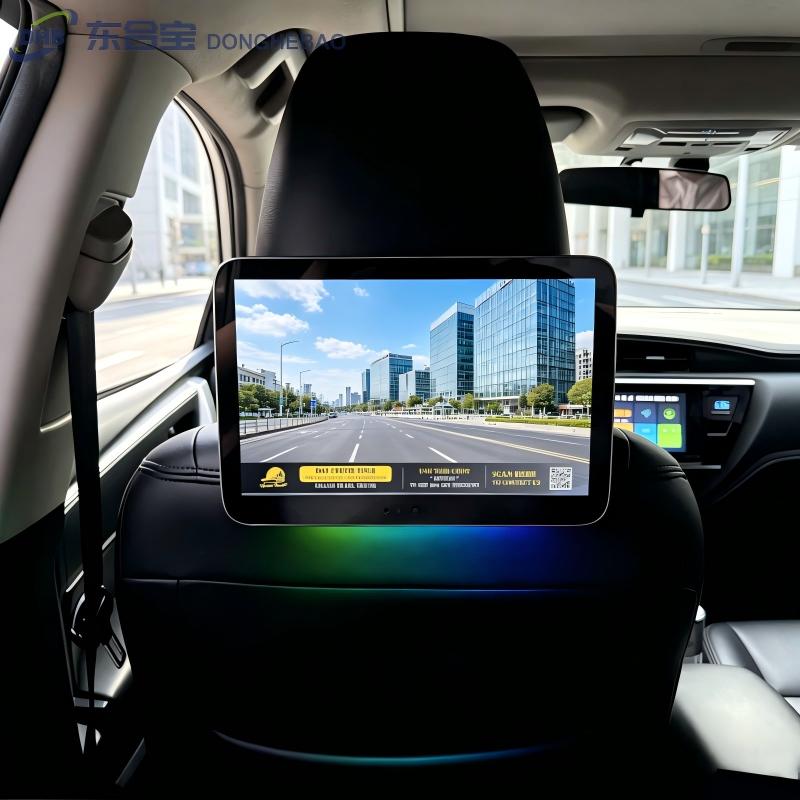
How to Enable Wireless ADB Connection on DHB Taxi Digital Signage
Introduction
DHB Taxi Digital Signage is based on the Android operating system and supports professional software debugging, application installation, and system configuration.
For engineering and development purposes, ADB (Android Debug Bridge) is an important tool that allows technicians to communicate with Android devices.
Traditionally, ADB requires a USB cable connection. However, DHB Taxi Digital Signage also supports wireless ADB debugging, allowing developers to connect the device through WiFi without using a physical data cable.
This method improves debugging efficiency and is especially useful for installation environments where direct USB access is inconvenient.
This guide explains how to establish a wireless ADB connection step by step.
What Is Wireless ADB?
ADB (Android Debug Bridge) is a communication tool provided by Android that allows computers to communicate with Android devices.
Through ADB, engineers can:
- Debug Android applications
- Install APK files
- Transfer files
- Check system information
- Perform software testing
Wireless ADB allows these operations through a network connection instead of a USB cable.
Before Starting
Before enabling wireless ADB on the DHB Taxi Digital Signage, please prepare:
- A DHB Android taxi display device
- A computer with ADB tools installed
- A stable WiFi network
Important:
The taxi display and computer must be connected to the same WiFi network and be within the same local area network.
Step 1: Enable Developer Mode
Before enabling wireless debugging, developer mode must be activated.
If you have not enabled developer options before, please refer to our previous guide:
Taxi Seat Back Display Developer Options Setup Guide | DHB
Operation path:
APPS → Settings → Factory Settings → Password (66610001) → Developer Mode Enabled
After successful activation, the system will allow access to Android developer options.
Step 2: Enable Wireless Debugging
After enabling developer mode:
- Click:
Android Settings
- Enter:
System
- Select:
Advanced
- Open:
Developer Options
- Find:
Wireless Debugging
- Enable wireless debugging.
After enabling this function, make sure the DHB Taxi Digital Signage and your computer are connected to the same WiFi network.
Enter the wireless debugging page and record the displayed IP address.
Example:
192.168.1.xxx
The IP address will be required for the ADB connection.
Step 3: Connect ADB Through CMD
Open your computer and run:
CMD (Command Prompt)
Enter the following command:
adb connect IP address
Example:
adb connect 192.168.1.100
If the connection is successful, the terminal will display:
connected to 192.168.1.100
At this point, ADB wireless connection has been completed.
You can now use ADB commands for:
- Application debugging
- APK installation
- File transfer
- System testing
Troubleshooting Wireless ADB Connection
If the wireless ADB connection fails, please check the following:
1. Confirm Network Connection
Make sure:
- The taxi display and computer are connected to the same WiFi network.
- The IP address entered is correct.
- The network signal is stable.
2. Check Firewall Settings
Some computer firewall settings may block ADB communication.
Try temporarily checking firewall permissions or allowing ADB communication.
3. Restart ADB Service
If the connection cannot be established, restart the ADB service:
adb kill-serveradb start-server
Then try connecting again.
Important Security Notes
Wireless debugging provides convenient access for development and testing.
However, for security reasons:
- Only authorized technicians should enable wireless debugging.
- Disable wireless debugging after completing testing.
- Avoid connecting the device to unknown networks.
Keeping wireless debugging disabled during normal operation helps protect the security of the Taxi Digital Signage system.
Advantages of Wireless ADB for Taxi Digital Signage
Wireless ADB provides several benefits:
1. No USB Cable Required
Engineers can debug the device without accessing physical USB ports.
This is useful for installed taxi displays where cable access may be difficult.
2. Faster Development and Testing
Wireless ADB allows engineers to quickly:
- Install applications
- Update test software
- Transfer files
- Check system information
This improves development efficiency.
3. Convenient for Large Projects
For taxi fleets and commercial deployment projects, wireless debugging provides a more flexible way to maintain and test multiple Android displays.
Conclusion
Wireless ADB is a useful feature for DHB Taxi Digital Signage systems, allowing engineers to connect Android devices through WiFi without using a USB cable.
The complete process is:
Enable Developer Mode → Enable Wireless Debugging → Connect ADB Through CMD
With this method, engineers can efficiently perform software debugging, application installation, and system testing while improving maintenance efficiency.
For security reasons, wireless debugging should be disabled after completing development work.
FAQ
1. What is ADB on a Taxi Digital Signage system?
ADB (Android Debug Bridge) is an Android communication tool that allows computers to connect with Android devices for debugging, application installation, and file transfer.
2. Does wireless ADB require a USB cable?
No.
Wireless ADB connects through WiFi, allowing engineers to debug the Taxi Digital Signage device without a physical USB connection.
3. What are the requirements for wireless ADB connection?
You need:
- A DHB Android Taxi Digital Signage device
- A computer with ADB installed
- The display and computer connected to the same WiFi network
4. Why can’t I connect ADB wirelessly?
Common reasons include:
- Different WiFi networks
- Incorrect IP address
- Firewall blocking communication
- Unstable network connection
Please check the network settings and restart ADB if necessary.
5. How do I enable wireless debugging?
Follow this path:
Android Settings → System → Advanced → Developer Options → Wireless Debugging
Enable wireless debugging and use the displayed IP address for ADB connection.
6. Is wireless ADB safe for normal operation?
Wireless ADB should only be enabled during development or maintenance.
After completing testing, it is recommended to disable wireless debugging to protect system security.
7. Can DHB customize software and support ADB debugging?
Yes.
DHB provides:
- Android software customization
- APK integration
- CMS system connection
- Firmware customization
- OEM & ODM services
CTA
Need Technical Support for DHB Taxi Digital Signage?
DHB provides professional Taxi Digital Signage, Taxi Rear Seat Display, and Taxi Advertising Display solutions for global taxi operators, advertising companies, and fleet management projects.
Our technical team can support:
- Wireless ADB debugging
- Android system configuration
- APK integration
- CMS development
- Firmware upgrades
- Hardware customization
- OEM & ODM projects
WhatsApp: +8613422871594
Email: kiki@donghebao.com
Contact Us: About Us | Leading Taxi Advertising Company – DHB Taxi Ad
www.dhbtaxiad.com www.donghebao.com
Work with DHB for reliable Android taxi display solutions designed for commercial transportation applications.
[…] How to Enable Wireless ADB Connection on DHB Taxi Digital Signage […]