

Introduction
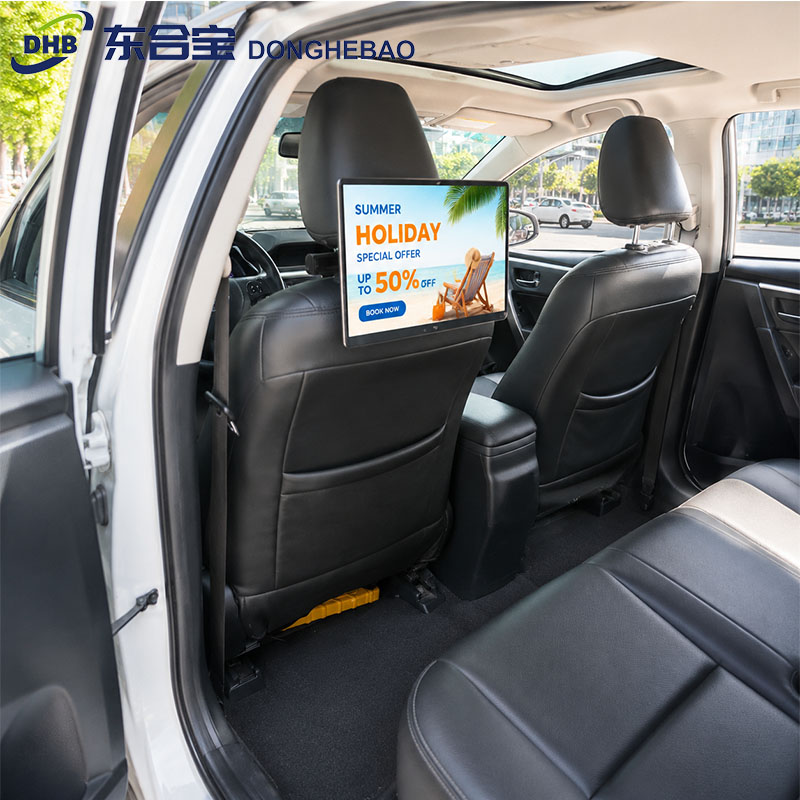
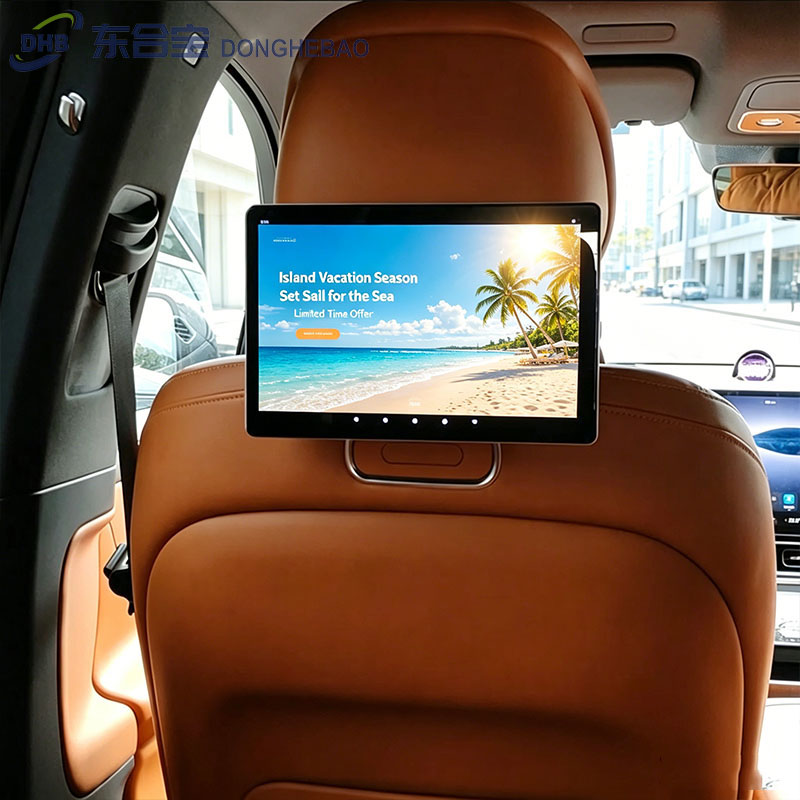
The DHB-T80 Android taxi headrest display supports Android Developer Mode, allowing developers and technical teams to use Android Debug Bridge (ADB) for software development, application debugging, system testing, and technical support.
After Developer Mode is enabled, the T80 can support two ADB connection methods:
- Wireless ADB
- Wired ADB through the Type-C interface
The two connection methods have different setup procedures. This guide explains how to enable Developer Mode first, followed by the configuration required for wired ADB. Android taxi headrest display
Part 1: How to Enable Developer Mode on the DHB-T80
Before using ADB, Developer Mode must first be enabled on the taxi advertising machine.
Follow these steps:
Step 1: Open Settings
Enter the Settings menu on the DHB-T80.
Step 2: Select RSE Settings
In Settings, select:
RSE Settings
Step 3: Enter Factory Settings
Select:
Factory Settings
Step 4: Enter the Password
Enter the factory password:
66610001
Then click OK.
Step 5: Turn On Developer Mode
After entering the factory settings, an option will appear at the bottom:
Turn on development option
Step 6: Find Developer Options
Return to the main Settings menu.
Go to:
Settings → System → Developer Options
The Developer Options menu should now be available.
At this point, Developer Mode has been successfully enabled on the DHB-T80.
Part 2: ADB Connection Methods
After Developer Mode is enabled, the DHB-T80 supports ADB connections through either:
- Wireless ADB
- Wired ADB
The wireless and wired methods use different configurations.Android taxi headrest display
Method 1: Wireless ADB Connection
The wireless ADB connection method for the DHB-T80 follows the same basic process as the wireless ADB setup used on DHB’s RK3566 Android taxi advertising solutions.
For detailed steps, please refer to our previous guide:
Wireless ADB Connection for RK3566 Android Devices
The wireless method is useful when developers need to debug or control the Android taxi headrest display without connecting a USB cable.
Before using wireless ADB, make sure the device and development computer are connected to the same local network and that the required wireless debugging settings are enabled.Android taxi headrest display
Method 2: Wired ADB Connection Through Type-C
The DHB-T80 also supports wired ADB through its Type-C interface.
However, the T80 uses a specific factory setting to switch the Type-C interface between normal USB functionality and wired ADB mode.
Step 1: Open Settings
Enter:
Settings
Step 2: Select RSE Settings
Select:
RSE Settings
Step 3: Enter Factory Settings
Select:
Factory Settings
Step 4: Enter the Password
Enter the factory password:
816241
Then click OK.
Step 5: Enable Wired ADB Mode
After entering the factory settings, an option will appear at the bottom:
Set as normal (1)
The setting works as follows:
- (1) = Enable wired ADB mode
- (0) = Disable wired ADB mode and restore normal USB functionality
When the setting is (1), the Type-C interface can be used to connect the Android taxi headrest display to a computer for ADB debugging.
Important: USB Function and Wired ADB Are Different Modes
When Set as normal (1) is enabled:
- Wired ADB can be used through the Type-C interface.
- The Type-C interface cannot recognize a USB flash drive.
When Set as normal (0) is selected:
- Wired ADB cannot be used.
- The Type-C interface returns to normal USB functionality.
- A USB flash drive can be recognized.
Therefore, if you need to use a USB flash drive for firmware upgrades or other USB operations, make sure the setting is returned to (0).
Developer Mode and ADB Workflow
The complete setup process can be summarized as:
Enable Developer Mode
Settings → RSE Settings → Factory Settings → Password 66610001 → Turn on development option
↓
Open Developer Options
Settings → System → Developer Options
↓
Select an ADB Method
Wireless ADB
or
Wired ADB
↓
For Wired ADB
Settings → RSE Settings → Factory Settings → Password 816241 → Set as normal (1)
↓
Connect the Computer Through Type-C
The computer can then establish an ADB connection with the DHB-T80.
Important Notes
1. The Two Passwords Have Different Functions
The two factory settings described in this guide serve different purposes:
66610001→ Enables or disables Android Developer Mode.816241→ Switches the Type-C interface between wired ADB mode and normal USB mode.
They should not be confused.Android taxi headrest display
2. Wired ADB and USB Flash Drive Functions Are Mutually Exclusive
When wired ADB mode is enabled, the Type-C interface is used for ADB communication and cannot recognize a USB flash drive.
When normal USB mode is enabled, the USB interface can recognize a USB flash drive, but wired ADB is unavailable.
3. Use Factory Settings Carefully
Factory settings are intended for technical personnel, developers, and authorized service teams. Do not change unrelated factory parameters unless you understand their functions.
4. Developer Mode Is Required for ADB
Enabling Developer Mode makes the Android Developer Options menu available. However, additional Android debugging settings may need to be enabled depending on the ADB connection method and development requirements.
FAQ
Can I use ADB after enabling Developer Mode?
Yes. After Developer Mode is enabled, the DHB-T80 can be configured for wireless or wired ADB access.Android taxi headrest display
Can the T80 use wireless and wired ADB?
Yes. The DHB-T80 supports both wireless and wired ADB connection methods.
Why can’t the Type-C interface recognize my USB flash drive?
Check the Set as normal factory setting. If it is set to (1), the Type-C interface is configured for wired ADB and cannot recognize a USB flash drive. Set it to (0) to restore normal USB functionality.Android taxi headrest display
Which password enables Developer Mode?
Use 66610001 to access the factory option for enabling or disabling Developer Mode.
Which password enables wired ADB?
Use 816241 to access the factory option for switching the Type-C interface to wired ADB mode.
Need Technical Support?
If you need help with DHB-T80 configuration, ADB connection, firmware, CMS integration, or customized Android functions, please contact the DHB technical team.Android taxi headrest display
WhatsApp: +86 134 2287 1594
Email: kiki@donghebao.com
Website:www.dhbtaxiad.com
Contact Us If you have any questions, you can contact the company’s business. We provide the best technical services
For product information and technical support, please visit our Contact Us page.
Android taxi headrest display