

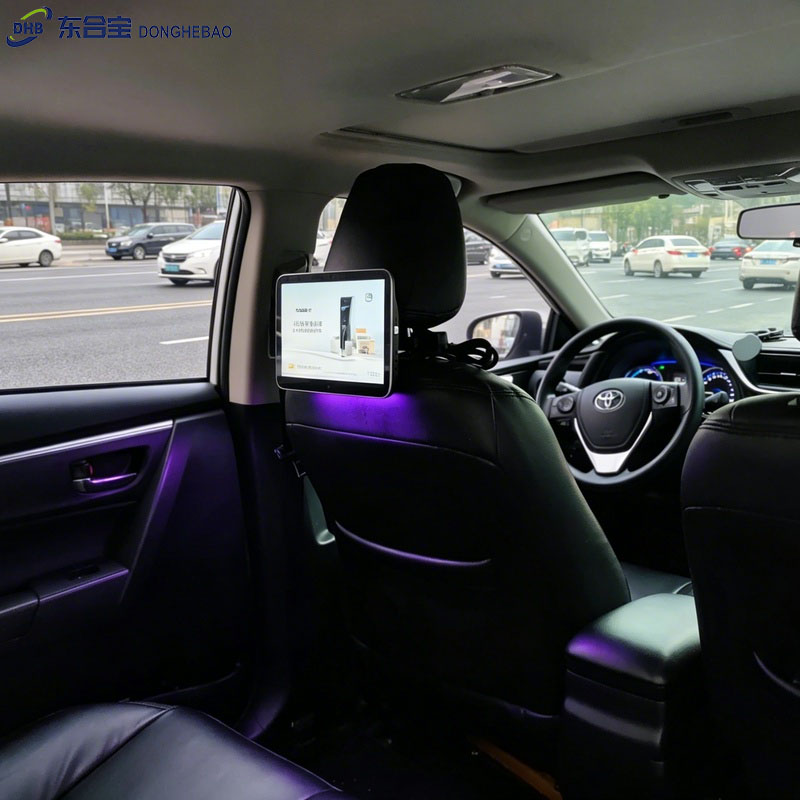
For a taxi headrest advertising tablet, providing a clean and stable display interface is important for commercial advertising applications.
The DHB-T80 solution supports a navigation bar hiding function, allowing the device screen to display content in a cleaner full-screen mode.
After enabling this function, the navigation bar will no longer appear during normal operation, helping prevent accidental operations and improving the user experience for taxi advertising applications.
Important: The setting method described in this article is only applicable to the DHB-T80 solution. Other DHB models may have different menu structures or settings.
Why Hide the Navigation Bar?
In taxi advertising applications, the device is usually used for displaying advertisements, CMS content, or customized applications.
Hiding the navigation bar can provide several benefits:
- Create a cleaner full-screen advertising display.
- Prevent passengers from accidentally exiting the advertising application.
- Reduce unnecessary system operations.
- Improve the stability of the advertising playback environment.
For touch-enabled taxi headrest advertising tablets, hiding the navigation bar can help keep the device operating within the designated application environment.
How to Enable Navigation Bar Hiding Function
Follow the steps below to enable the navigation bar hiding function on the DHB-T80.
Step 1: Open APPS
Turn on the DHB-T80 taxi headrest advertising tablet.
From the main screen, click:
APPS
to enter the application list.
Step 2: Open Settings
Find and click:
Settings
to enter the system settings menu.
Step 3: Enter RSE Settings
In the Settings menu, select:
RSE Settings
Click to enter the RSE configuration page.
Step 4: Enter Factory Settings
In the RSE Settings menu, select:
Factory Settings
A password input window will appear.
Enter the password:
123456
Then click:
OK
to enter the factory settings menu.
Step 5: Enable Navigation Bar Hiding
Find the option:
No slide to show navi
Click the square box in front of this option.
When the box displays:
✓
the navigation bar hiding function has been enabled.
Step 6: Restart the Device
After completing the setting:
- Exit back to the main interface.
- Restart the DHB-T80 taxi headrest advertising tablet.
After restarting, the navigation bar hiding function will take effect.
Navigation Bar Hide Setup Process
The complete setup process is:
APPS → Settings → RSE Settings → Factory Settings → Enter Password 123456 → No slide to show navi → Enable ✓ → Return to Main Screen → Restart Device
After restarting, the navigation bar will be hidden.
Important Notes
Before changing this setting, please check the following:
- This function is designed for the DHB-T80 solution.
- Make sure the correct factory password is entered.
- The device must be restarted after enabling the function.
- If the setting does not take effect, please restart the device again and confirm that the option remains enabled.
- Menu names may vary slightly depending on firmware versions.
taxi headrest advertising tablet
FAQ
1. Which device supports this navigation bar hiding function?
This setting method is designed for the DHB-T80 taxi headrest advertising tablet solution.
2. Why should I hide the navigation bar?
Hiding the navigation bar helps create a cleaner full-screen display environment and prevents unnecessary system operations during advertising playback.taxi headrest advertising tablet
3. What is the factory settings password?
For the DHB-T80 solution, enter:
123456
to access the factory settings menu.
4. Does the setting take effect immediately?
No. After enabling No slide to show navi, you need to return to the main interface and restart the device.
5. Can passengers still operate the device after hiding the navigation bar?
After hiding the navigation bar, the device interface will be more restricted, reducing the possibility of accidental system operations.taxi headrest advertising tablet
6. Does this function apply to all DHB taxi advertising tablets?
The setting method in this article is specifically for the DHB-T80 solution. Other models may use different settings.taxi headrest advertising tablet
Contact DHB
If you need technical support for your taxi headrest advertising tablet, including T80 solution settings, Android configuration, CMS integration, or customized functions, please contact the DHB technical team.
WhatsApp: +8613422871594
Email: kiki@donghebao.com
Website:www.dhbtaxiad.com
Contact Us
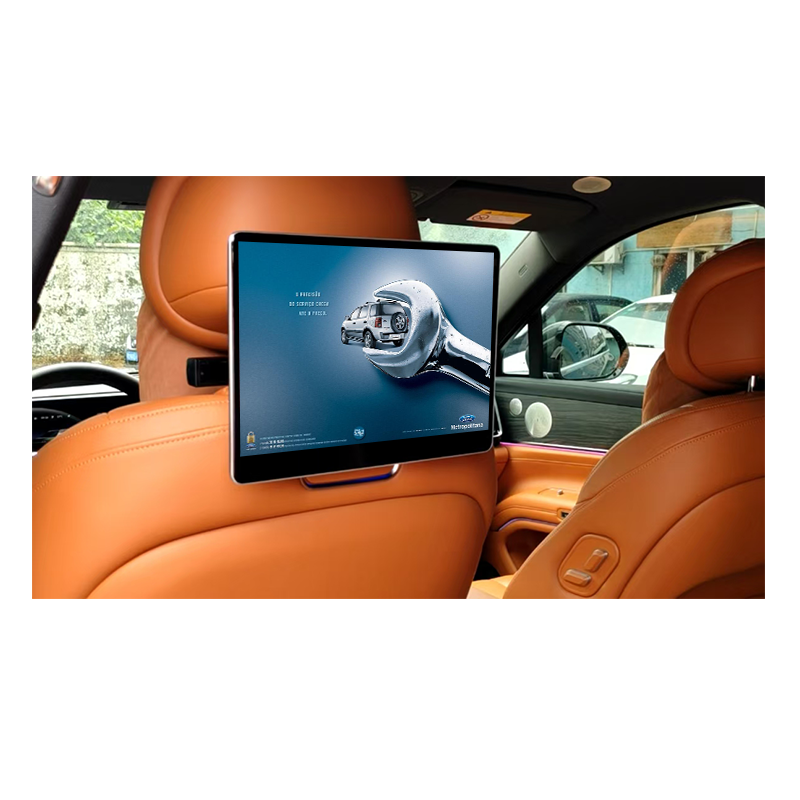
[…] How to Hide the Navigation Bar on a DHB-T80 Taxi Headrest Advertising Tablet […]