

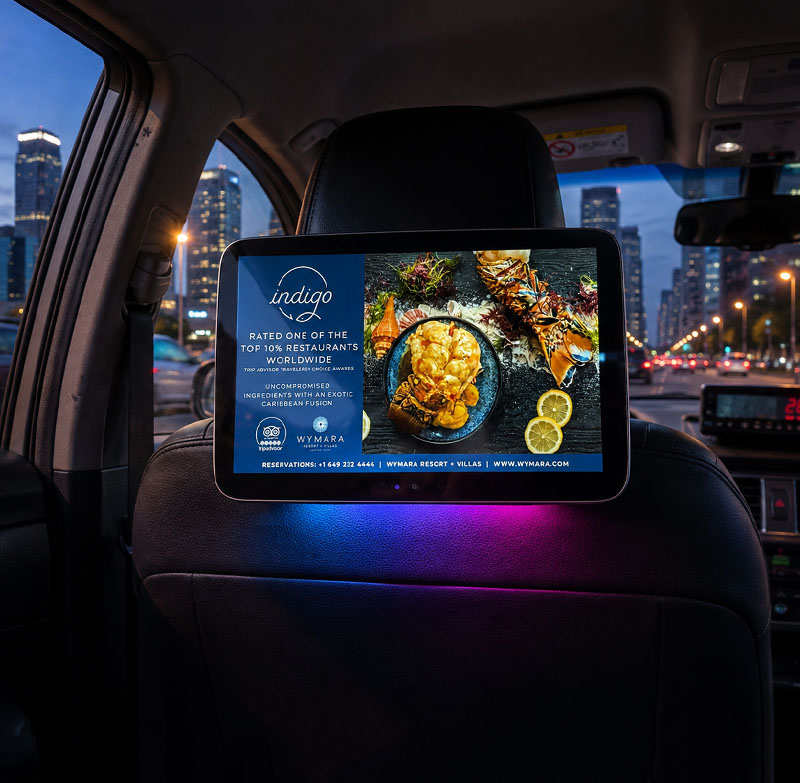
taxi advertising machine firmware upgrade
taxi advertising machine firmware upgrade
DHB Taxi Advertising Machine Firmware Upgrade Guide
This guide explains how to upgrade the firmware of a DHB taxi advertising machine using a USB flash drive. There are two upgrade methods depending on whether the Android system can start normally.
Method 1: Upgrade When the Android System Works Normally
Step 1: Download the Latest Firmware(.ZIP file)
Download the latest system firmware provided by DHB to your computer.
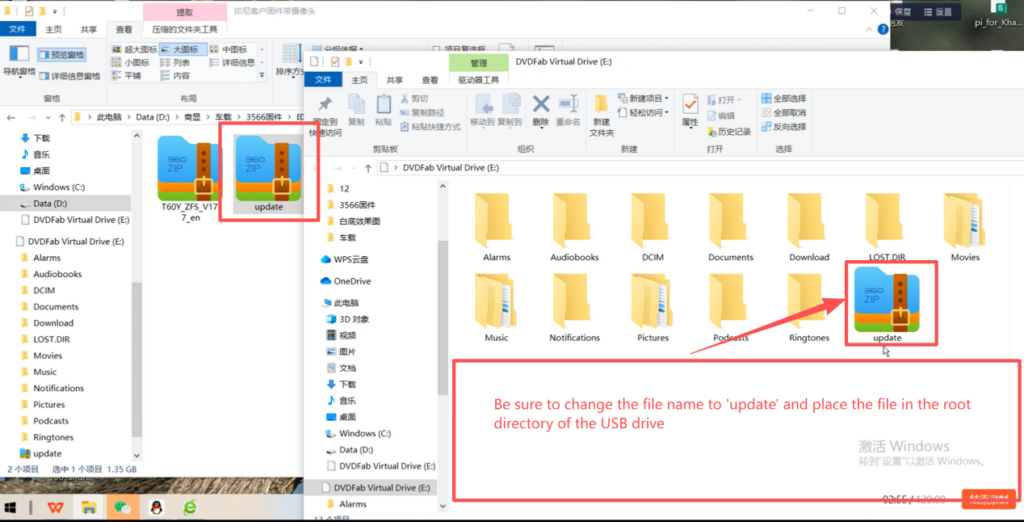
Check the firmware file name and rename it to:
update
Please make sure the file name is correct before continuing.
Step 2: Copy the Firmware to the USB Flash Drive
Copy the firmware file to the root directory of the USB flash drive.
Do not place the firmware file inside any folder. After copying, check the file name again and make sure it is still named update.
Step 3: Insert the USB Flash Drive
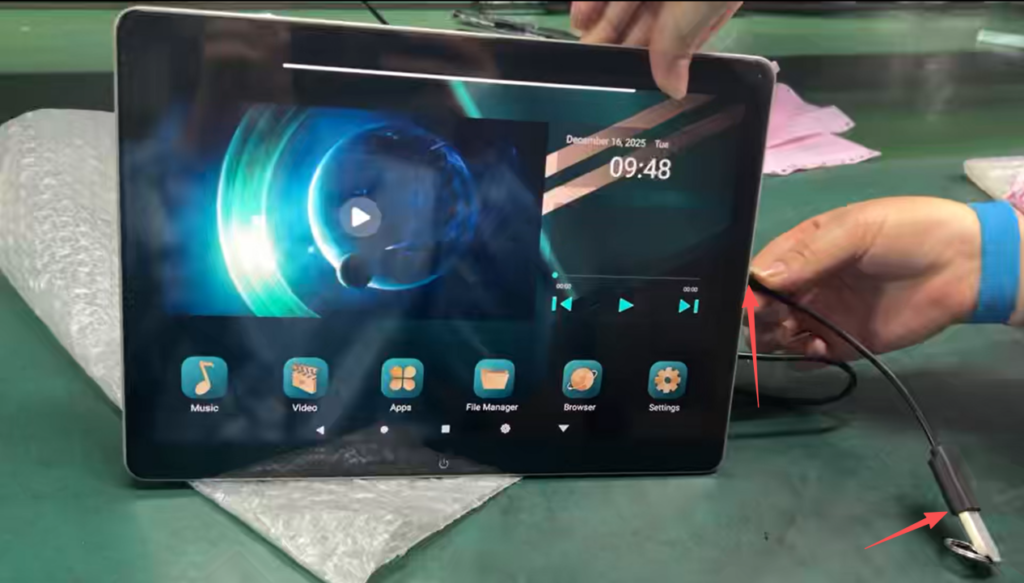
Insert the USB flash drive into the Type-C port of the DHB taxi advertising machine.
Important: The Type-C interface must be used for the firmware upgrade. Please use the Type-C adapter cable supplied with the advertising machine.
Step 4: Start the Automatic Upgrade
If the advertising machine can enter the Android system normally, simply insert the USB flash drive into the Type-C port. No additional operation is required.
The system will automatically detect the firmware and start the upgrade.
During the upgrade process, the advertising machine will restart for the first time.
Do not unplug the USB flash drive or disconnect the power supply.
After the firmware upgrade is completed, the advertising machine will restart for a second time.
The second restart may take longer than a normal startup. Please wait patiently.
After the advertising machine restarts and successfully enters the Android system, you can remove the USB flash drive.
Please refer to the DHB firmware upgrade video for the complete operation.
Method 2: Upgrade When the Android System Cannot Start
This situation can be quite complicated, and a separate article has already been written https://dhbtaxiad.com/rk3566-taxi-headrest-advertising-tablet-firmware/
This method uses IMG files. Suitable for situations where the Android system crashes and the taxi advertising machine cannot start
Important Notes
- Use the correct firmware for your DHB advertising machine model.
- For a normal upgrade, rename the firmware file to update.
- Copy the firmware directly to the root directory of the USB flash drive.
- Use the Type-C port for the firmware upgrade.
- Use the supplied Type-C adapter cable.
- Do not remove the USB flash drive during the upgrade.
- Do not disconnect the power supply during the upgrade.
- If the Android system cannot start, contact DHB technical support for the correct system image.
Conclusion
The DHB taxi advertising machine supports two firmware upgrade methods. If the Android system works normally, use the standard update firmware file and the automatic USB upgrade method. If the Android system cannot start, use the system image recovery method provided by DHB technical support.
Following the correct procedure will help ensure a safe and successful firmware upgrade.
FAQ
1. What is the correct firmware file name for a normal DHB firmware upgrade?
The normal firmware file should be renamed to update before it is copied to the root directory of the USB flash drive.
2. Where should I copy the firmware file?
The firmware must be copied directly to the root directory of the USB flash drive. Do not place it inside another folder.taxi advertising machine firmware upgrade
3. Which port should I use for the firmware upgrade?
Use the Type-C interface of the DHB taxi advertising machine together with the supplied Type-C adapter cable.
4. Can I remove the USB drive during the upgrade?
No. Do not remove the USB flash drive while the firmware is being upgraded. Wait until the advertising machine has completed the upgrade and restarted successfully.
5. Can I disconnect the power during the firmware upgrade?
No. The power supply must remain connected throughout the upgrade process. Disconnecting the power during firmware installation may cause the upgrade to fail.
6. What should I do if the Android system cannot start?
If the Android system has crashed and cannot be accessed, remove the normal firmware file from the USB drive and contact DHB technical support for the appropriate system image. The USB drive must then be prepared as an image according to the provided instructions.taxi advertising machine firmware upgrade
7. How long does the recovery upgrade take?
The recovery upgrade takes approximately 10 minutes, although the actual time may vary depending on the device and image file.
8. Why does the second restart take longer?
After the firmware is installed, the system may require additional time to initialize the updated software. Please wait patiently and do not disconnect the power or remove the USB drive until the Android system has started successfully.
CTA
Need Help With a DHB Taxi Advertising Machine Firmware Upgrade?
If you need the latest firmware, system image, upgrade instructions, or technical support for your DHB taxi advertising machine, our technical team can help you identify the correct upgrade method for your device.
taxi advertising machine firmware upgrade
WhatsApp: +86 13422871594
Email: kiki@donghebao.com
Contact Us:Contact DHB Taxi Ad | Get Taxi Advertising Displays Quote
Whether you need firmware upgrades, CMS integration, Android system customization, or OEM/ODM taxi advertising display solutions, contact the DHB team for professional technical support.